
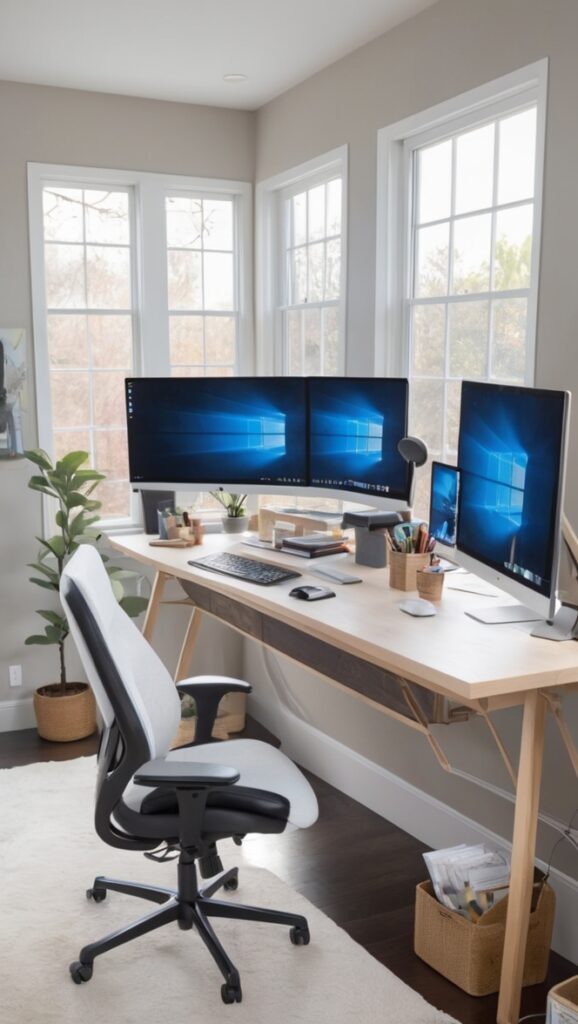
“Looking to optimize your workspace with a multi-monitor computer desk? Learn how to set up a triple monitor desk setup effortlessly.”
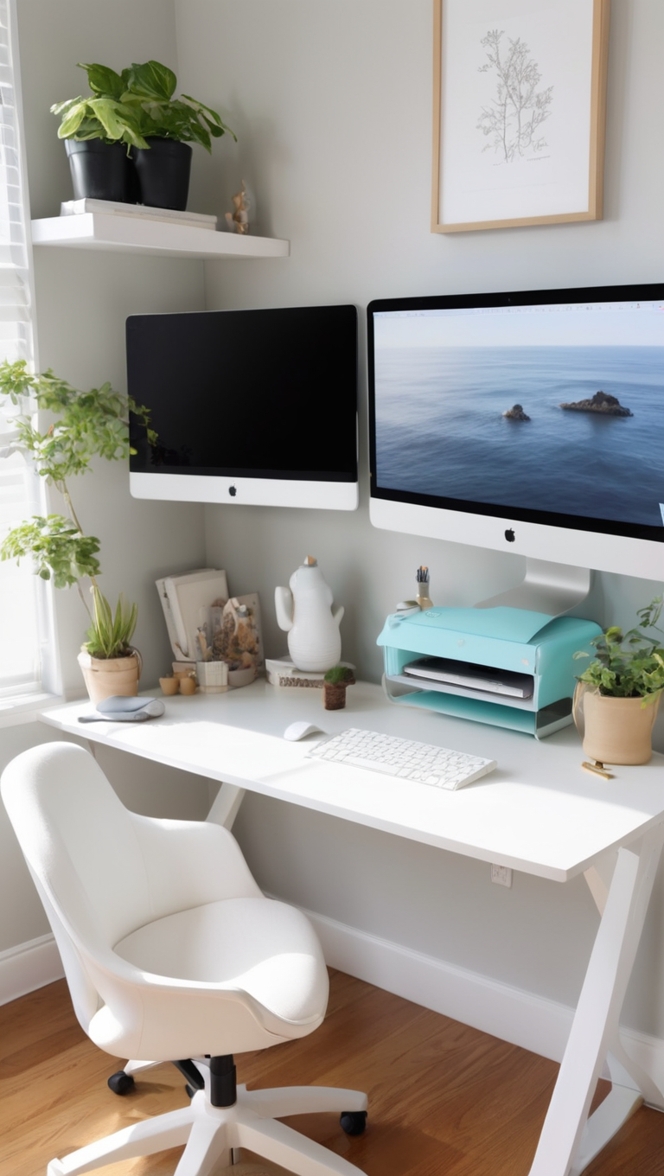
Disclosure: This post contains affiliate links. We may earn a commission at no extra cost to you.
My Lovely Spring Paint for 2025
Ready for a Spring Makeover? Explore the Freshest 2025 Paint Trends!
White Sage/Green SW - Shop Now Pistachio green - Shop Now Soft blue - Shop Now Honeysweet/Orange - Shop Now Pink Sugar - Shop Now Sage Tint BM - Shop NowAs an Amazon Associate, I may earn a commission from qualifying purchases at no extra cost to you.
3 monitor desk setup in a home office can greatly enhance productivity and efficiency. To set it up, start by ensuring your desk is large enough to accommodate all three monitors without feeling cluttered. Use a triple monitor stand to save space and improve ergonomics. Make sure your computer has the necessary ports for three monitors and consider investing in a graphics card if needed. Organize cables neatly to avoid tangling. The benefits of a 3 monitor setup include better multitasking capabilities and increased screen real estate for improved workflow.
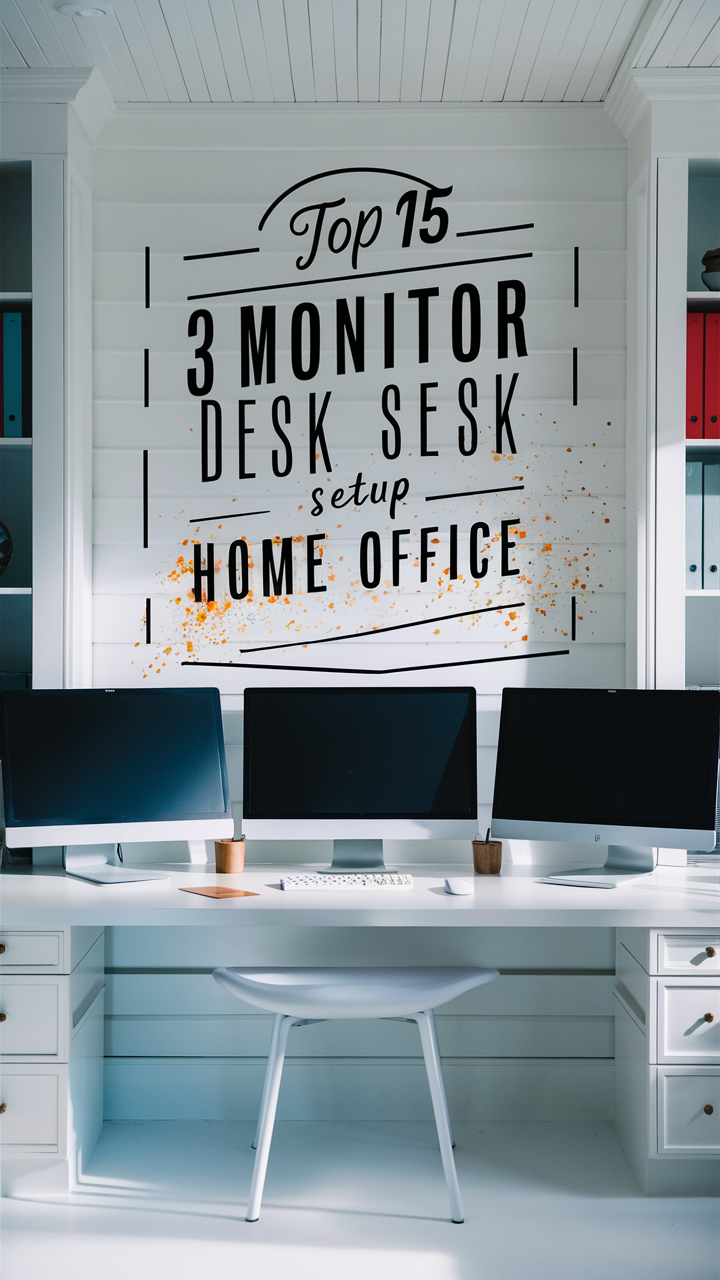
Setting up a 3 monitor desk setup in your home office can significantly enhance your productivity and multitasking capabilities. As a homeowner who has personally gone through the process, I can share my experiences and insights to help you create the perfect workstation. In this article, we will delve into the key aspects of setting up a 3 monitor desk setup, including monitor selection, graphics card requirements, physical setup, desk considerations, cable management, monitor compatibility, and software configurations.
### 1. What type of monitors should I use for a 3 monitor desk setup?
Choosing the right monitors for your 3 monitor desk setup is crucial. Opt for monitors with thin bezels to minimize visual interruptions between screens. Ensure that all three monitors have the same resolution and refresh rate to maintain consistency in display quality. Consider factors such as panel type (IPS, TN, or VA), size, and color accuracy based on your specific needs and budget.
### 2. Do I need a special graphics card to support 3 monitors?
Yes, you will need a graphics card that supports multiple displays to set up a 3 monitor desk configuration. Look for a graphics card with multiple video outputs (such as DisplayPort, HDMI, or DVI) and sufficient video memory to handle the increased workload of driving three monitors simultaneously. Check the specifications of your graphics card to ensure it can support the desired resolution and refresh rate across all three monitors.
### 3. How do I physically set up the monitors on my desk?
Position the three monitors in a curved or straight configuration based on your preference and desk space. Use monitor mounts or stands to adjust the height and angle of each monitor for ergonomic viewing. Ensure that the monitors are aligned at eye level to reduce neck strain and enhance comfort during prolonged use. Calibrate the color and brightness settings of each monitor to achieve a consistent visual experience across all screens.
### 4. What kind of desk is best for a 3 monitor setup?
Choose a spacious desk with sufficient surface area to accommodate three monitors, a keyboard, a mouse, and other essential accessories. Opt for a desk with cable management features or cable trays to keep the wires organized and prevent clutter. Consider a standing desk or an adjustable desk to alternate between sitting and standing while working to promote better posture and reduce sedentary behavior.
### 5. How do I manage the cables for 3 monitors?
Use cable clips, ties, or sleeves to bundle and route the cables neatly along the desk or under the desk to maintain a clean and organized workspace. Label the cables or use color-coded tags to easily identify each cable for troubleshooting or maintenance purposes. Consider investing in a cable management box or desk grommets to conceal the cables and minimize visual distractions.
### 6. Can I use different sizes or brands of monitors for a 3 monitor setup?
While it is recommended to use monitors of the same size, resolution, and refresh rate for a cohesive visual experience, you can still mix different sizes or brands of monitors in a 3 monitor setup. However, be mindful of variations in color reproduction, brightness, and bezel thickness that may affect the overall consistency and aesthetics of the display. Calibrate the monitors individually to achieve a uniform look across all screens.
### 7. Are there any software configurations or settings I need to adjust for a 3 monitor setup?
Configure your operating system settings to recognize and extend the desktop across all three monitors. Adjust the display settings to align the monitors in the correct order and orientation based on their physical placement. Install graphics card drivers and software to customize display settings, including screen resolution, refresh rate, and color profiles. Explore multitasking features like virtual desktops or taskbars to optimize productivity across the three monitors.
By addressing these key questions and considerations, you can successfully set up a 3 monitor desk setup in your home office. Remember to personalize your workstation based on your workflow requirements, preferences, and budget constraints to create a productive and comfortable workspace. Embrace the flexibility and efficiency that a 3 monitor desk setup offers to elevate your work-from-home experience and maximize your creative potential.
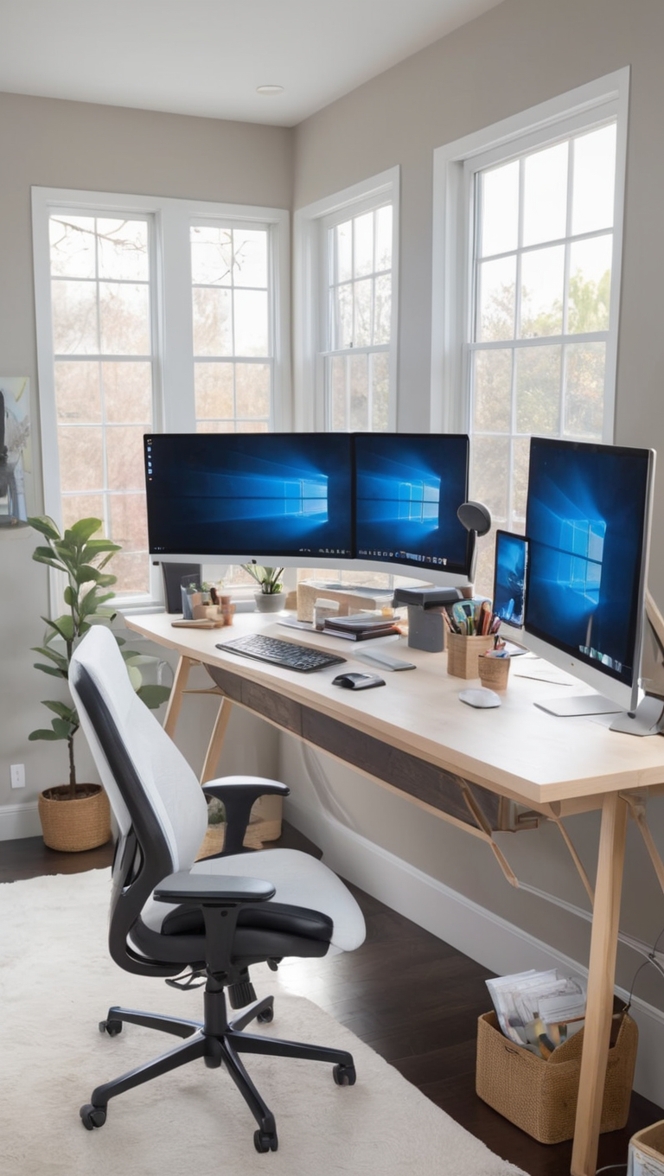
Enhance Your Productivity with a 3 Monitor Desk Setup in Your Home Office
Setting up a 3 monitor desk in your home office can be a game-changer when it comes to boosting your productivity and efficiency. With the right tools and setup, you can create a workspace that allows you to multitask seamlessly and have all your important information at your fingertips. Here are some tips and ideas to help you make the most of your 3 monitor desk setup:
1. Choose the Right Desk
Before you start setting up your 3 monitor desk, make sure you have a desk that is large enough to accommodate all three monitors without feeling cluttered. Look for a desk with ample surface area and sturdy construction to support the weight of the monitors.
2. Use a Triple Monitor Stand
To save space and improve ergonomics, consider using a triple monitor stand that can hold all three monitors in a compact and organized manner. This will also make it easier to adjust the height and angle of the monitors to suit your preferences.
3. Check Your Computer’s Compatibility
Make sure your computer has the necessary ports to connect three monitors. If not, you may need to invest in a graphics card that supports multiple displays. This will ensure that your system can handle the increased workload of driving three monitors simultaneously.
4. Organize Your Cables
One of the key challenges of setting up a 3 monitor desk is dealing with the tangle of cables that comes with it. Take the time to organize your cables neatly and use cable management solutions to keep them out of the way. This will not only make your setup look cleaner but also prevent any accidents or damage.
5. Benefits of a 3 Monitor Setup
With a 3 monitor desk setup, you’ll enjoy better multitasking capabilities as you can have multiple windows and applications open at the same time. The increased screen real estate also allows for a more efficient workflow, as you can spread out your work across different screens and have all your important information visible at once.
6. Optimize Your Workflow
Take advantage of the extra screen space to optimize your workflow. For example, you can have your email open on one screen, a web browser on another, and your main work application on the third. This way, you can easily switch between tasks without having to minimize or resize windows constantly.
7. Create Custom Workspaces
Use virtual desktops or workspace management tools to create custom workspaces for different tasks. For example, you can have one workspace for creative work with design tools open, another for research with reference materials, and a third for communication with chat and email applications.
8. Enhance Collaboration
If you often collaborate with others remotely, a 3 monitor setup can be incredibly useful. You can have video conferencing or collaboration tools open on one screen while working on a project on another. This makes it easy to communicate and share information with colleagues or clients in real-time.
9. Reduce Eye Strain
By spreading out your work across three monitors, you can reduce eye strain and fatigue that can occur from staring at a single screen for extended periods. Adjust the brightness and color settings of your monitors to create a comfortable viewing experience and take regular breaks to rest your eyes.
10. Customize Your Setup
Personalize your 3 monitor desk setup to suit your preferences and work style. Experiment with different monitor configurations, such as landscape or portrait orientation, and arrange them in a way that feels most natural to you. You can also add accessories like monitor arms, desk lamps, or plants to enhance the look and functionality of your workspace.
11. Stay Organized
Maintain a clutter-free workspace by regularly decluttering and organizing your desk. Keep only the essentials within reach and store away any items that are not immediately needed. This will help you stay focused and productive throughout the day without distractions.
12. Stay Updated with Technology
As technology evolves, so should your 3 monitor desk setup. Stay updated with the latest software updates, monitor technologies, and ergonomic solutions to ensure that your workspace remains efficient and comfortable. Consider upgrading your monitors or accessories as needed to keep up with the demands of your work.
By following these tips and ideas, you can create a 3 monitor desk setup in your home office that enhances your productivity and efficiency. With the right tools and organization, you’ll be able to work smarter, not harder, and make the most of your workspace.
