
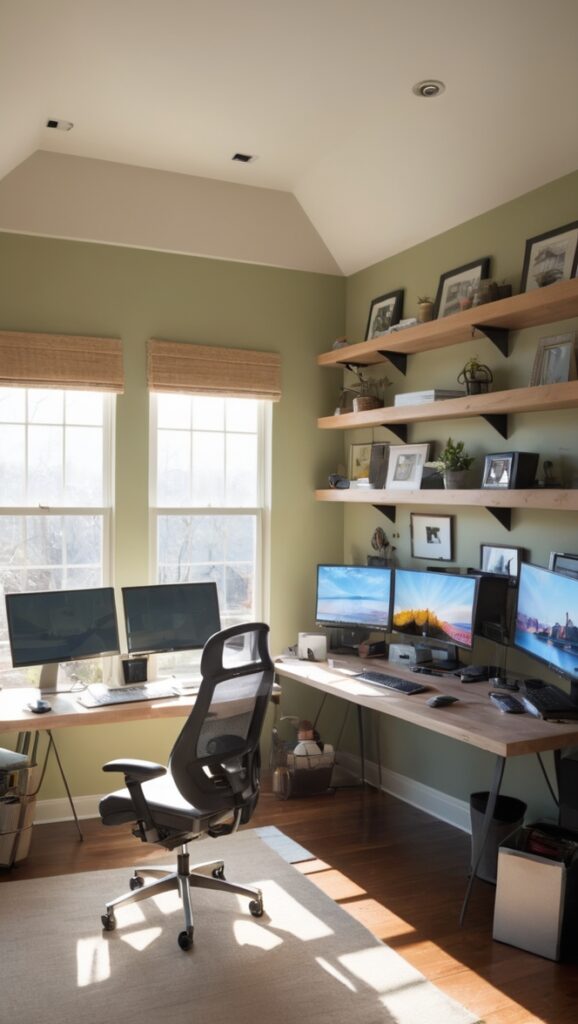
Looking to boost productivity while working from home? Learn how a dual monitor setup can optimize your home office.
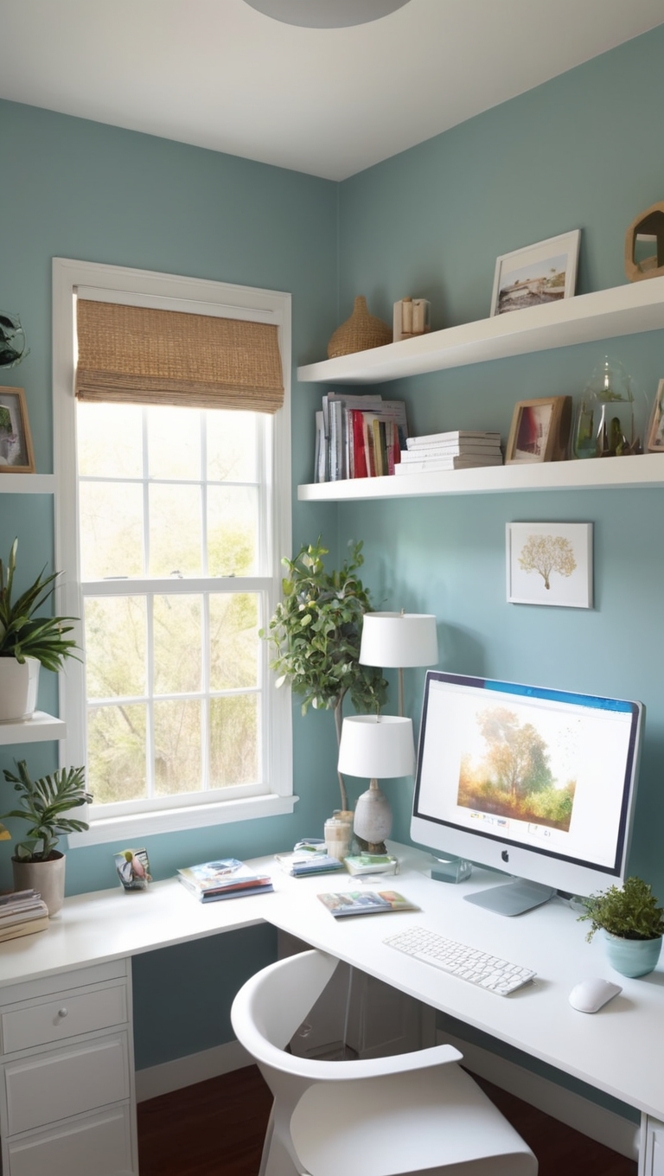
Disclosure: This post contains affiliate links. We may earn a commission at no extra cost to you.
My Lovely Spring Paint for 2025
Ready for a Spring Makeover? Explore the Freshest 2025 Paint Trends!
White Sage/Green SW - Shop Now Pistachio green - Shop Now Soft blue - Shop Now Honeysweet/Orange - Shop Now Pink Sugar - Shop Now Sage Tint BM - Shop NowAs an Amazon Associate, I may earn a commission from qualifying purchases at no extra cost to you.
**How can I optimize my home office with a multiple monitor setup?**
multiple monitor setup home office
As a homeowner looking to optimize your home office with a multiple monitor setup, you can enhance productivity by increasing screen real estate for multitasking. Benefits include improved workflow, easier document comparison, and enhanced creativity. To set up multiple monitors, ensure compatibility with your computer system, optimize cable management, and adjust monitor positioning for ergonomic viewing. Organize cables neatly to avoid clutter and invest in a monitor stand for better alignment.
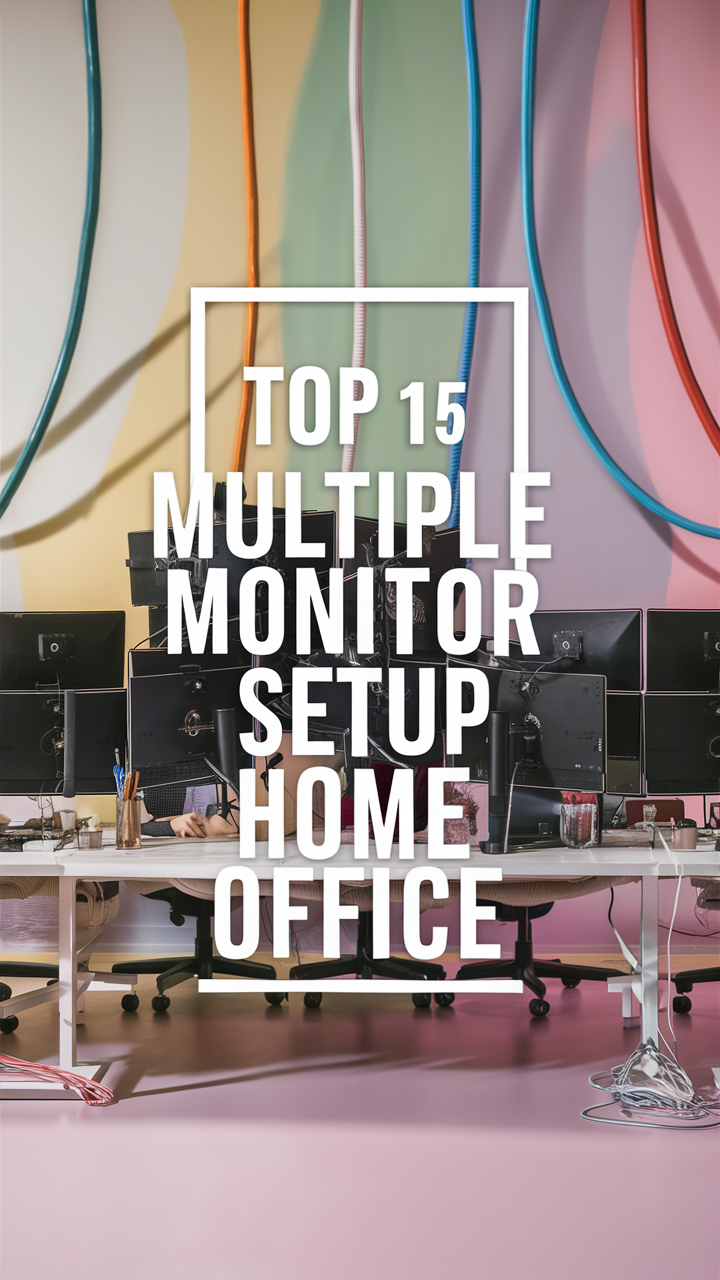
How can I optimize my home office with a multiple monitor setup?
1. Why should I consider a multiple monitor setup for my home office?
As a homeowner who values productivity and efficiency, incorporating a multiple monitor setup in your home office can significantly enhance your workflow. With multiple monitors, you can have more screen real estate to work with, allowing you to multitask seamlessly and increase your overall productivity.
2. What are the benefits of using multiple monitors in a home office environment?
Using multiple monitors in your home office can lead to improved task management, easier access to reference materials, enhanced creativity, and reduced eye strain. By having different applications and documents open on separate screens, you can work more efficiently and effectively.
3. How many monitors should I use for an optimal setup?
The number of monitors you should use for your home office setup depends on your specific needs and preferences. While some users find two monitors to be sufficient, others may benefit from three or more monitors for a more expansive workspace. Experiment with different configurations to find what works best for you.
4. What hardware and cables do I need to connect multiple monitors to my computer?
To set up multiple monitors, you will need additional monitors, a compatible graphics card that supports multiple displays, and the necessary cables to connect the monitors to your computer. Make sure to check the specifications of your graphics card and monitors to ensure compatibility.
5. How can I arrange my multiple monitors for maximum productivity and comfort?
When arranging multiple monitors in your home office, consider factors such as ergonomics, screen orientation, and viewing distance. Position the monitors at eye level, adjust the brightness and contrast settings for optimal viewing, and use monitor stands or mounts to create a comfortable and efficient setup.
6. What software or tools can help me manage windows and applications across multiple monitors?
There are various software programs and tools available that can help you manage windows and applications across multiple monitors, such as DisplayFusion, UltraMon, and Dual Monitor Tools. These tools offer features like window snapping, taskbar customization, and screen management options to enhance your multitasking experience.
7. Are there any potential drawbacks or challenges to using a multiple monitor setup in a home office?
While using multiple monitors in your home office can bring numerous benefits, there are also potential drawbacks to consider. These may include increased power consumption, compatibility issues with certain software applications, and the need for additional desk space. Be mindful of these challenges and address them accordingly to optimize your multiple monitor setup.
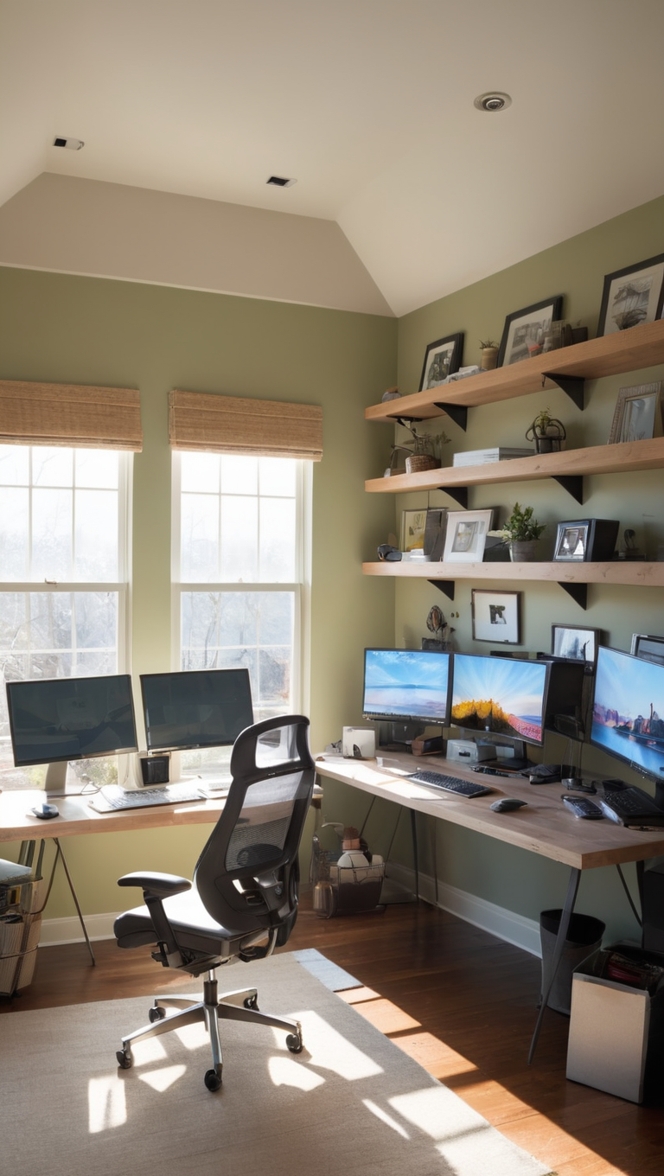
Optimizing Your Home Office with a Multiple Monitor Setup: 12 Ideas for Productivity and Efficiency
In today’s fast-paced work environment, having a well-equipped home office is essential for maximizing productivity and efficiency. One way to enhance your workspace is by setting up a multiple monitor system. This setup allows you to expand your screen real estate, making it easier to multitask, compare documents, and unleash your creativity. If you’re looking to optimize your home office with a multiple monitor setup, here are 12 ideas to help you get started:
1. Choose the Right Monitors: When selecting monitors for your multiple monitor setup, consider factors such as screen size, resolution, and connectivity options. Opt for monitors that are compatible with your computer system and provide the features you need for your work.
2. Optimize Cable Management: To avoid a tangled mess of cables, invest in cable management accessories such as cable clips, ties, and sleeves. Keep your cables organized and out of the way to create a clean and clutter-free workspace.
3. Adjust Monitor Positioning: Proper monitor positioning is crucial for ergonomic viewing. Position your monitors at eye level to reduce neck strain and eye fatigue. Consider using a monitor stand or mount to adjust the height and angle of your monitors.
4. Create a Seamless Workflow: With multiple monitors, you can easily switch between tasks and applications. Use one monitor for your main work area and the other for reference materials, communication tools, or project management software.
5. Enhance Document Comparison: Compare documents side by side on different monitors to streamline your workflow. This makes it easier to spot differences, make edits, and review content without switching between windows.
6. Boost Creativity: Multiple monitors can inspire creativity by providing a larger canvas for brainstorming, sketching, or designing. Use one monitor for your main work and the other for visual inspiration, mood boards, or reference images.
7. Customize Display Settings: Adjust the display settings on each monitor to optimize color accuracy, brightness, and contrast. Calibrate your monitors to ensure consistent color reproduction across all screens.
8. Create Virtual Workspaces: Use virtual desktop software to create multiple workspaces on each monitor. Organize your applications, windows, and tasks into different desktops for a more organized and efficient workflow.
9. Collaborate Effectively: With multiple monitors, you can easily collaborate with colleagues, clients, or team members. Share your screen on one monitor while keeping your work private on the other.
10. Stay Focused: Use one monitor for your main work tasks and the other for distractions such as email, social media, or news feeds. Stay focused on your work by minimizing distractions on the secondary monitor.
11. Increase Productivity: Multiple monitors can help you work more efficiently by reducing the need to switch between windows and applications. Boost your productivity by having all your essential tools and resources visible at a glance.
12. Experiment with Layouts: Don’t be afraid to experiment with different monitor layouts to find the setup that works best for you. Try different configurations such as side-by-side, stacked, or angled monitors to see which layout enhances your workflow.
In conclusion, optimizing your home office with a multiple monitor setup can significantly improve your productivity and efficiency. By following these 12 ideas, you can create a workspace that is tailored to your needs and preferences. Whether you’re a designer, developer, writer, or remote worker, a multiple monitor setup can help you work smarter and achieve your goals with ease.
